We’re excited to introduce DMC LabBook v6.1, the latest update to the software that powers your data collection process. This release focuses on making your workflow more efficient and intuitive – so that you can spend less time writing experiments and more time analyzing meaningful data.
Version 6.1 is designed to improve efficiency in the lab by simplifying experiment setup. We’ve integrated an updated study creation interface for smoother navigation and a more intuitive setup experience. The updates outlined below enhance usability, organization, and overall data collection flow. With an improved user interface and several new features, version 6.1 streamlines study steps, experiment management, and protocol creation. Best of all, this update is FREE to all current Version 6 users.
Public vs. Private Studies
One of the biggest changes in v6.1 is the ability to control the “location” of your Studies and Experiments.
You can now designate them as either Public or Private:
- Public Studies and Experiments
- Accessible to all user accounts on the computer. These are ideal for shared lab environments where multiple researchers need access to the same protocol.
- Private Studies and Experiments
- Stored in a private data directory and accessible only to the user who created them.
- NOTE:
- Public Studies can only access Public Experiments.
- Private Studies can only access Private Experiments.
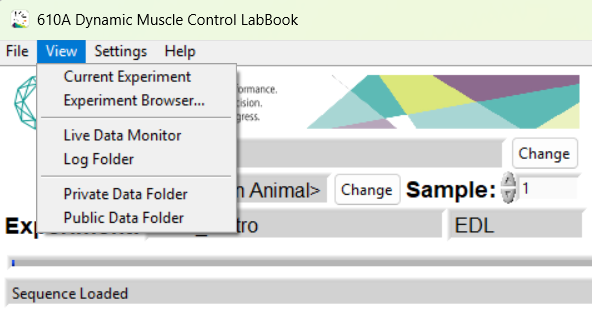
Figure 1: The Private and Public Data folder locations are found under the “View” Menu option.
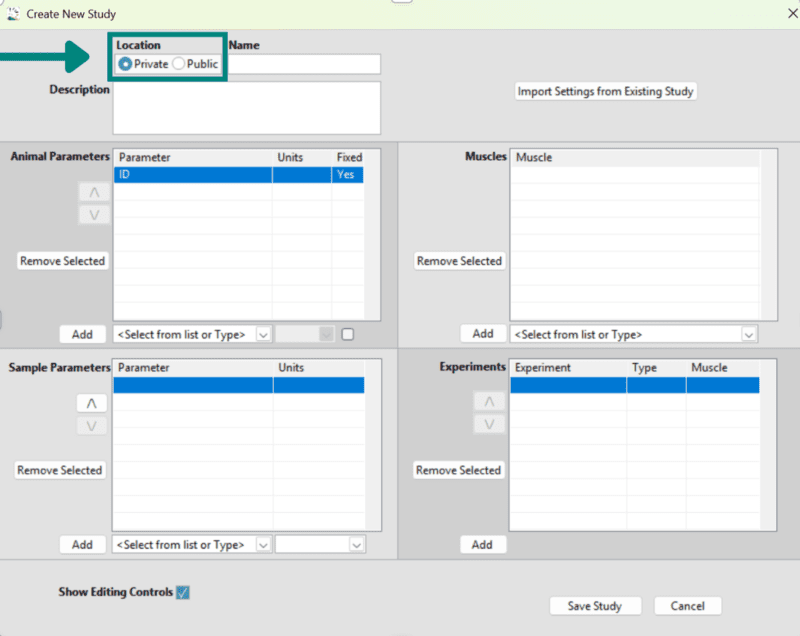
Figure 2: In the “Create New Study” window, the arrow above indicates where you select to make a study public or private.
Viewing and Editing Experiments
We’ve expanded the way you can view and manage Studies and Experiments. Previously, under the File Menu, users could only open a read-only window displaying the current Study setup. In v6.1, we’ve added an Edit feature.
With the new “View/Edit Study” function, users can now make limited edits after saving a Study. Specifically you may
- Add new animal or sample parameters that may have been initially missed.
All other aspects of the Study remain locked to preserve experimental integrity.
New “View” Menu:
A new View menu has been added to the top of the navigation bar. This menu include options to:
- View the Current Experiment
- Open the Experiment Browser
- View the Live Data Monitor
- Open the Log Folder
- Access Private and Public Data Folder locations
The Current Experiment option opens a graphical window displaying the loaded experiment and its defined parameters. In previous versions, this function was accessed via a button on the main window.
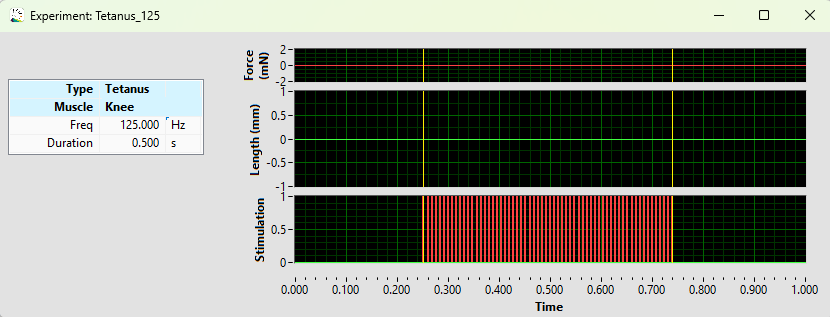
Figure 3: A view of the “Current Experiment” window under the ‘View’ Menu option on the main page. This example experiment is a Tetanus, with a stimulation frequency of 125Hz and duration of 0.5s.
The Experiment Browser provides a comprehensive list of all available experiments and their associated parameters across studies, giving you greater visibility and control over your protocol library.
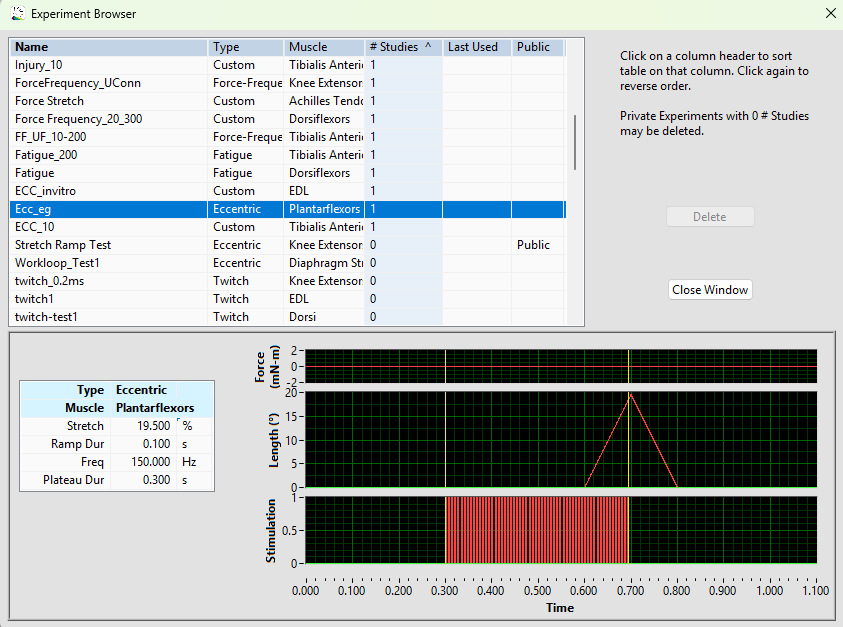
Figure 4: A view of the “Experiment Browser” window under the ‘View’ Menu option on the main page.
Batch Add Animals to a Study
Entering animal parameters individually can be time-consuming – especially when that information already exists in another file, such as Excel.
With the new Batch Animal Entry option (located under the File menu), you can now:
- Paste animal data directly, from a .csv file for example
- Add multiple animals at once
- Streamline study setup and reduce repetitive data entry
Batch entry leads to faster setup and a more efficient workflow, particularly for larger studies.
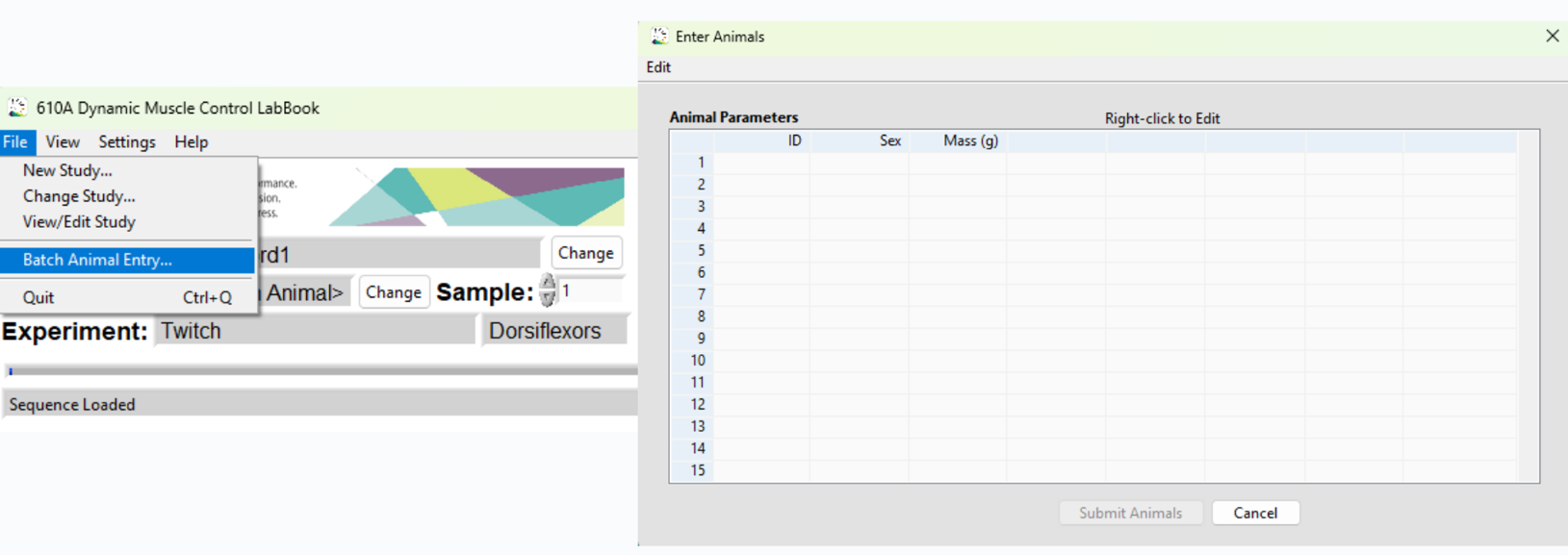
Figure 5: The location of “Batch Animal Entry” is under the “File” Menu. The image to the right depicts how this window appears once selected.
Test Experiments While Writing Them
When creating experiments in the Experiment Wizard, you can now test them before creating your study, and ultimately locking it.
The new “Test Experiment” button runs the protocol in Sandbox Mode, allowing you to simulate the experiment without storing it in the Study. Results are displayed in a DMC analysis pop-up window.
This feature enables researchers to iteratively refine their experiment design before committing to the Study – reducing errors and improving precision.
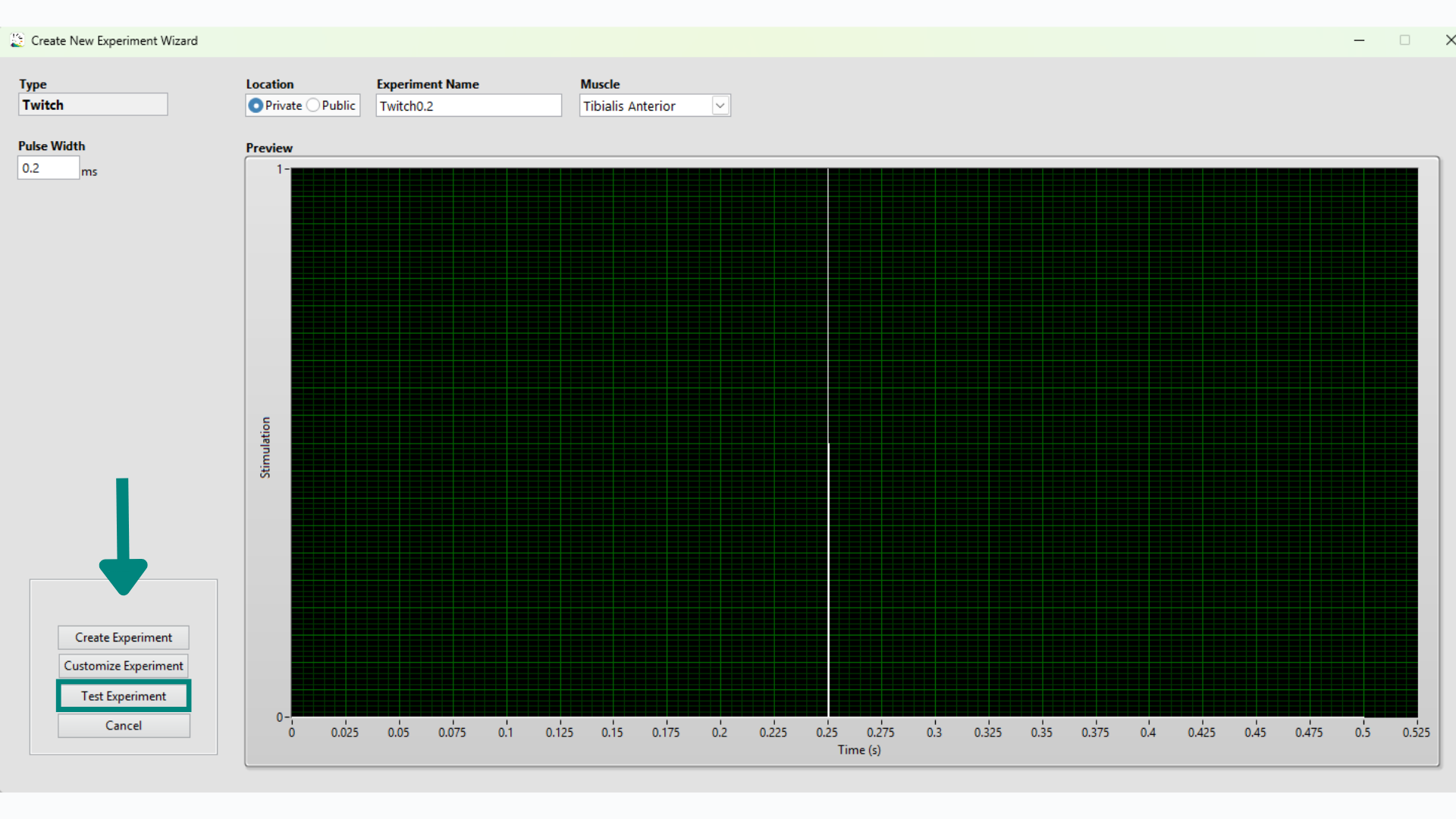
Figure 6: Within the ‘Create New Experiment Wizard’ window, the ‘Test Experiment’ button is indicated by the arrow.
Simplified Eccentric and Injury Protocols
We heard your feedback – and we’ve made the eccentric and injury protocol setup easier to write.
In previous versions, setting a stretch ramp origin to something other than zero required using the Customize Experiment feature. With v6.1, that workaround is no longer necessary.
The updated interface for Eccentric and Injury experiments now allows you to:
- Set a positive limit to conduct contractions of the dorsiflexors.
- Set a negative limit to conduct contractions of the plantarflexors.
Example: Eccentric Contractions of the Dorsiflexors
In an in vivo experiment, for example, the protocol may be written as follows:
- The footplate is rotated 19.5° clockwise and held at that position.
- It is then rotated 39° counterclockwise, producing a controlled stretch of the muscle.
- During this stretch phase, the muscle is activated via electrical stimulation.
- Finally, the footplate returns to the zero position, completing the contraction cycle.
This updated structure makes eccentric contractions easier to define and execute, without requiring additional customization steps.
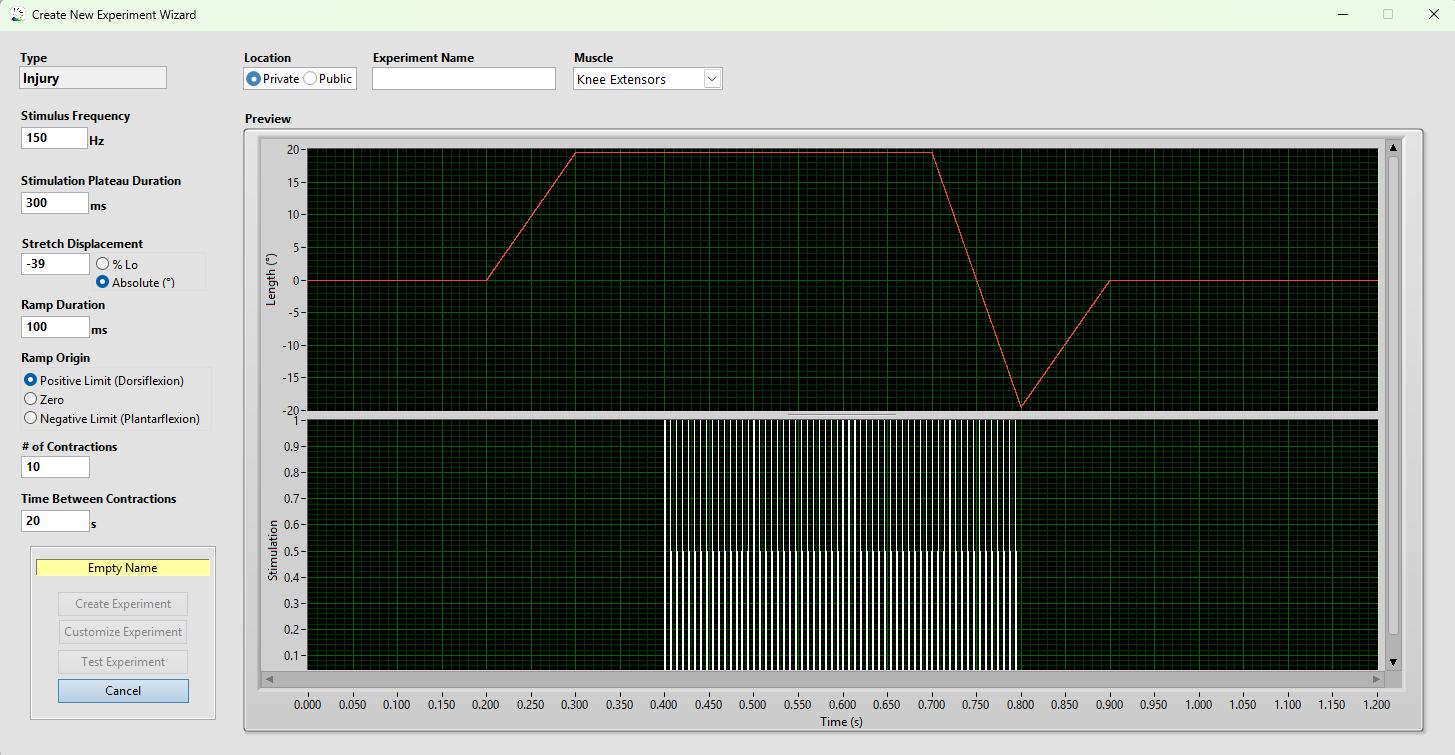
Figure 7: An Injury experiment selected within the “Create New Study” window will open up a pop-up window, such as the one above, in the “Create New Experiment Wizard” window. This injury has been set to a positive limit to conduct a dorsiflexion experiment, as described above.
Upgrade Today
DMC LabBook v6.1 is designed to help you focus on what matters most – your data.
With improved organization, batch data entry, experiment testing tools, and streamlined eccentric protocol creation, this update enhances both efficiency and usability across the lab.
Calling all version 6 users! Download your free version 6 update today:
If you have an questions about the new features, please contact Aurora Scientific at +1-905-727-5161 or info@AuroraScientific.com